Do you see a yellow notice in your WordPress dashboard about members who will not be given a WordPress role? This notice comes from a safety check that stops new members from getting a WordPress role with elevated permissions. This article explains what the notice means, why it appears, and how to resolve it.
You can change the WordPress role assigned to a membership level in the Setup > Levels section of WishList Member.
—
What the Notice Says and Where It Appears
Starting in WishList Member 3.37.1, a yellow warning notice appears at the top of your WordPress dashboard when one or more membership levels are affected. Only administrators see it.
The notice can’t be dismissed. It goes away on its own once no membership level is affected.
The notice includes the following details:
- Affected levels. The first three membership levels by name, followed by “and N more” when more levels are affected.
- Blocked roles. The WordPress roles that are treated as privileged.
- Capabilities. The capabilities that caused each role to be blocked. These appear in parentheses after the role name.
Sometimes a role is followed by “(blocked by a filter or not a registered role)” instead of capabilities. This means the role doesn’t exist on your site, or custom code on your site blocks it. Change the level’s Member Role, as described in Option 2 below.
There are two versions of the notice. Each is explained below.
Members Get No WordPress Role
This version appears when the level’s role, the WordPress New User Default Role, and the Subscriber role are all treated as privileged. New members in these levels are created without a WordPress role.
The notice reads: “WishList Member: members registering into these levels will not be given a WordPress role: Gold, Silver, Bronze and 2 more. These roles are treated as privileged: subscriber (example_plugin_capability). Members will get no role until those capabilities are removed or the level role is changed.”
The screenshot example below shows this version of the notice for the Gold, Silver, and Bronze levels.

—
Members Get a Fallback Role
This version appears when the level’s role is treated as privileged, but a safer role is available. For example, Gold may be set to a role that can moderate comments, such as a custom Moderator role. New members get the New User Default Role instead. If that role is also blocked, they get the Subscriber role.
The notice reads: “WishList Member: members registering into these levels will be given the subscriber role instead of the level role: Gold. These roles are treated as privileged: moderator (moderate_comments). Members will keep getting the fallback role until those capabilities are removed or the level role is changed.”
The screenshot example below shows this version of the notice for the Gold level.

—
Why WishList Member Blocks Some Roles at Registration
Since WishList Member 3.36.1, registration includes a safety check. A new member is never given a WordPress role that carries elevated permissions.
If the role set on the membership level is elevated, WishList Member uses the New User Default Role instead. You can find that setting in Dashboard > Settings > General. If that role is also elevated, WishList Member uses Subscriber. If all of those count as elevated, the member is created with no WordPress role.
A role is treated as privileged if any of the following is true:
- It has an elevated capability. WishList Member keeps a list of capabilities that let a user manage the site, such as changing settings or managing other users.
- It has a WishList Member admin capability. These give access to WishList Member’s admin settings.
- It shares a capability with the Administrator role. Any capability that the Administrator role also has counts, unless it is on a short safe list of basic capabilities, such as reading content and uploading files.
- It is not a registered WordPress role. The role name set on the level doesn’t match any role on your site.
Why the Subscriber Role Can Be Blocked
The Subscriber role is blocked when it shares a capability with the Administrator role. This is the most common reason the notice appears.
Many plugins add their own capabilities to both the Subscriber and Administrator roles. A questions and answers plugin or an events plugin are common examples. Once Subscriber shares one of these capabilities with Administrator, it is treated as privileged.
These capabilities stay saved in the role even after the plugin is deactivated or deleted. This means your site can be affected by a plugin you removed a long time ago.
The notice lists the exact capabilities involved. Compare them with the plugins you use now to decide which option below fits your site.
How to Resolve the Notice
Before you start, make a full backup of your site. Then choose the option that matches your situation.
Option 1: Remove the Listed Capabilities From the Role
This is the best option when the capabilities are leftovers from a plugin your site no longer uses. One change to the role fixes every membership level that uses it.
WordPress doesn’t include a screen for editing role capabilities. You can use the free Members plugin from MemberPress or WP-CLI. Members is a separate plugin, not the Members section of WishList Member. To remove the capabilities with Members:
- Install and activate Members in Dashboard > Plugins > Add New Plugin.
- Navigate to Dashboard > Members > Roles.
- Click the role named in the notice, for example Subscriber, to open the Edit Role screen.
- Click the All tab in the Edit Capabilities box. Then type a capability name from the notice in the Filter capabilities box to find it.
- Uncheck the box in the Grant column. Leave the Deny box unchecked. Repeat steps 4 and 5 for each capability listed in the notice.
- Click Update.
If Roles doesn’t appear under Members, check Enable the role manager under Role Manager in Dashboard > Members > Settings. The Members role management guide explains the role editor in more detail.
Role changes are saved in WordPress, so you can deactivate and delete Members after you click Update. The capabilities stay removed. If another plugin adds them back later, the notice returns.
If you or your host use WP-CLI, you can run the command below instead. Replace the role and capability names with the ones from the notice.
# Replace capability_one and capability_two with the capabilities listed in the notice.
wp cap remove subscriber capability_one capability_two
The WP-CLI documentation for wp cap remove explains the command in more detail.
Option 2: Change the Member Role on the Level
This option works well for the fallback version of the notice. It also helps if your site has a custom role with only basic permissions.
- Navigate to the Setup > Levels section of WishList Member.
- Click the membership level named in the notice, for example Gold.
- Click the Additional Settings tab.
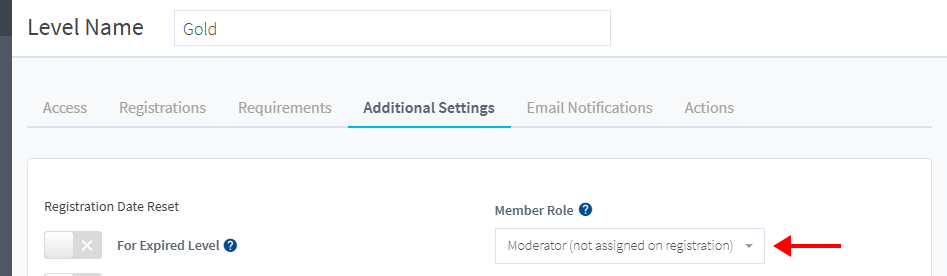
- Select a role in the Member Role dropdown that isn’t labeled “(not assigned on registration)”.
- Save the level.
The Member Role dropdown labels the roles that WishList Member won’t give to new members, for example “Moderator (not assigned on registration)”. You can still select these roles. They’re only applied when an administrator adds the member in the WordPress admin area. Members who sign up through a registration page get the fallback role instead, or no role if no fallback role is available.
The screenshot example below shows the Member Role setting in the Additional Settings tab for the Gold level. Gold is set to a Moderator role, so the role is labeled “(not assigned on registration)”.
—
Repeat these steps for each level named in the notice. The notice only names the first three levels, so reload the dashboard after you update them to see any others. You can learn more about this setting in Membership Levels – Additional Settings.
Option 3: Change the New User Default Role
This option helps with the “no role” version of the notice. It works when your site has a role with only basic permissions, such as a custom role. When a level’s role is blocked, new members get the New User Default Role instead. If that role is safe, they get it instead of no role.
- Navigate to Dashboard > Settings > General.
- Select a role that isn’t listed in the notice in the New User Default Role dropdown.
- Click Save Changes.
This setting applies to every new user on your site, not only members. Avoid roles that can write or publish posts, such as Author or Contributor, unless you want new members to have those permissions.
The notice may stay after this change. It then names the role that new members get instead of the level’s role. To clear it, also use Option 1 or Option 2.
Option 4: Contact Support
If a plugin you actively use needs those capabilities on the role, contact the WishList Member support team. We can help you choose the right approach for your site.
Confirm the Change Worked
Reload any page in your WordPress dashboard. The notice should no longer appear.
Then complete a test registration for the level. Go to Dashboard > Users > All Users and check that the new member has the expected role.
Fix Members Who Already Registered Without a Role
The options above only apply to new registrations. Members who already registered keep their current role until you change it.
Resolve the notice first. This makes sure the role you assign doesn’t carry the capabilities that were blocked. Then follow these steps:
- Navigate to Dashboard > Users > All Users.
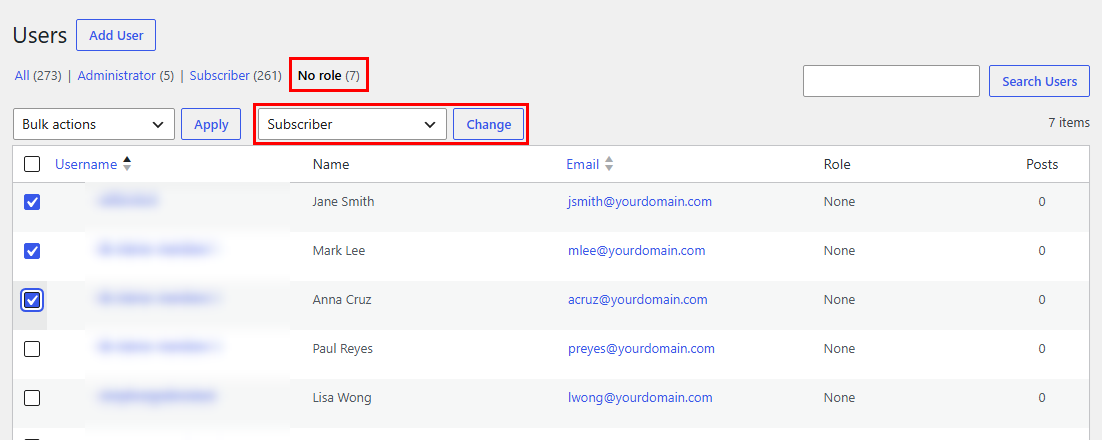
- Click No role in the list of filters at the top of the screen.
- Select the members you want to update.
- Select Subscriber in the Change role to… dropdown.
- Click Change.
The screenshot example below shows the No role filter and the Change role to… dropdown.
—
This only changes the WordPress role. The members keep their membership levels.
Frequently Asked Questions
Has My Site Been Hacked?
No. The notice is informational. It shows that a role on your site carries capabilities that WishList Member won’t give to new members. These capabilities are usually added by plugins.
Do Members Without a Role Lose Access to Their Levels?
No. Members without a role keep their membership levels and their access to protected content. They can’t enter the WordPress admin area.
Why Did This Start After an Update?
The safety check was added in WishList Member 3.36.1. From that version on, new members in affected levels got a fallback role or no role at all. WishList Member 3.37.1 added the notice so you can see which levels are affected and why.
Why Does the Role Show None for Some Members?
You can edit an existing member in the Members > Manage section of WishList Member. If the member has no WordPress role, the Role dropdown shows None. You can select a role there and save the member to assign one.