You built your membership site with a clear structure. Free members get the basics. Silver members get the core content. Gold members get everything. Simple enough. Right?
Contents
Then one day, a Gold member emails to say they can’t reach a module they’re supposed to have. Somewhere else, another member upgrades their plan, and still lands on the wrong content.
You open the settings and everything looks right, but the problem is still sitting there.
That’s usually the moment membership levels start to feel more complicated than they should.
Here’s the good news: content access in WishList Member gets a lot easier to manage once one distinction clicks into place: Protection and access are not the same thing.
- Protection decides whether content is locked.
- Access decides which membership levels can unlock it.
Almost every headache related to access traces back to those two ideas getting tangled together somewhere in the setup. So, let’s untangle them!
In this article, we’ll walk through how WishList Member handles permission logic, how to structure content across multiple levels without leaving gaps, when level stacking helps (and when it backfires), and how to move members through upgrades and downgrades without opening up access problems.
How WishList Member Controls Content Access
Content access in WishList Member comes down to two separate settings that work together: protection and access. Both have to be set correctly before a member can see protected content.
Protection is the first step. It tells WishList Member whether a page, post, category, or file should be locked. Leave something unprotected and anyone can see it, including visitors who aren’t logged in.
Remember, turning protection on doesn’t hand members access on its own. It just tells WishList Member, “Check this person’s membership level before showing the content.“
Access is the second step. Once content is protected, you decide which membership levels are allowed to view it. You can assign a protected page to one level, several levels, or all of them. As long as a member has an Active status in any of the allowed levels, they’re in.
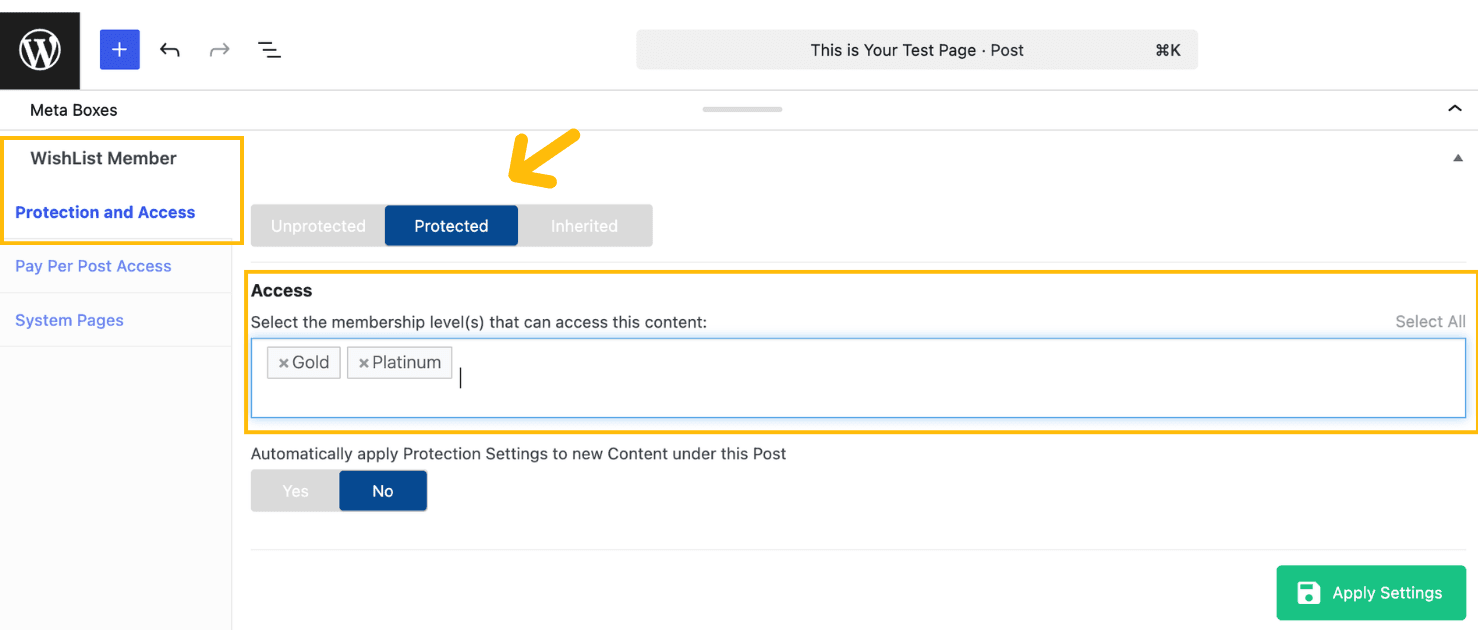
If their status is Cancelled or Expired, though, they won’t get access, even if that level still shows up in their account history.
To keep things simple, remember this:
Protected content + active membership level = access granted.
WishList Member Tip: When a member reports an access issue, start by checking their level status under Members > Manage. Hover over the icon beside each level to see whether their status is Active, Cancelled, Expired, or Needs Approval.
How to Set Up Access Across Multiple Membership Levels in WishList Member
The cleaner your membership structure is, the fewer access issues you’ll have to deal with later. Before you protect a single thing, map out which levels should see which content. That planning pays off because WishList Member gives you a few ways to share access.
Assign Access to Each Piece of Content
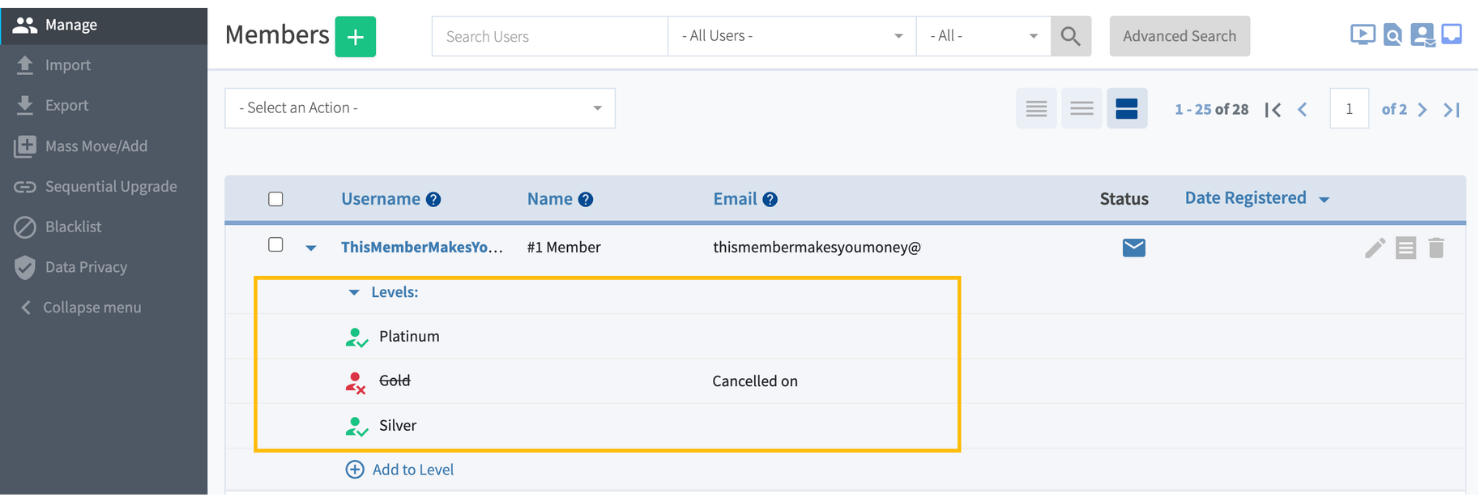
Every post or page has its own WishList Member access settings right inside the WordPress editor. That’s where you pick which membership levels can view that specific piece of content, and you can assign one level or several.
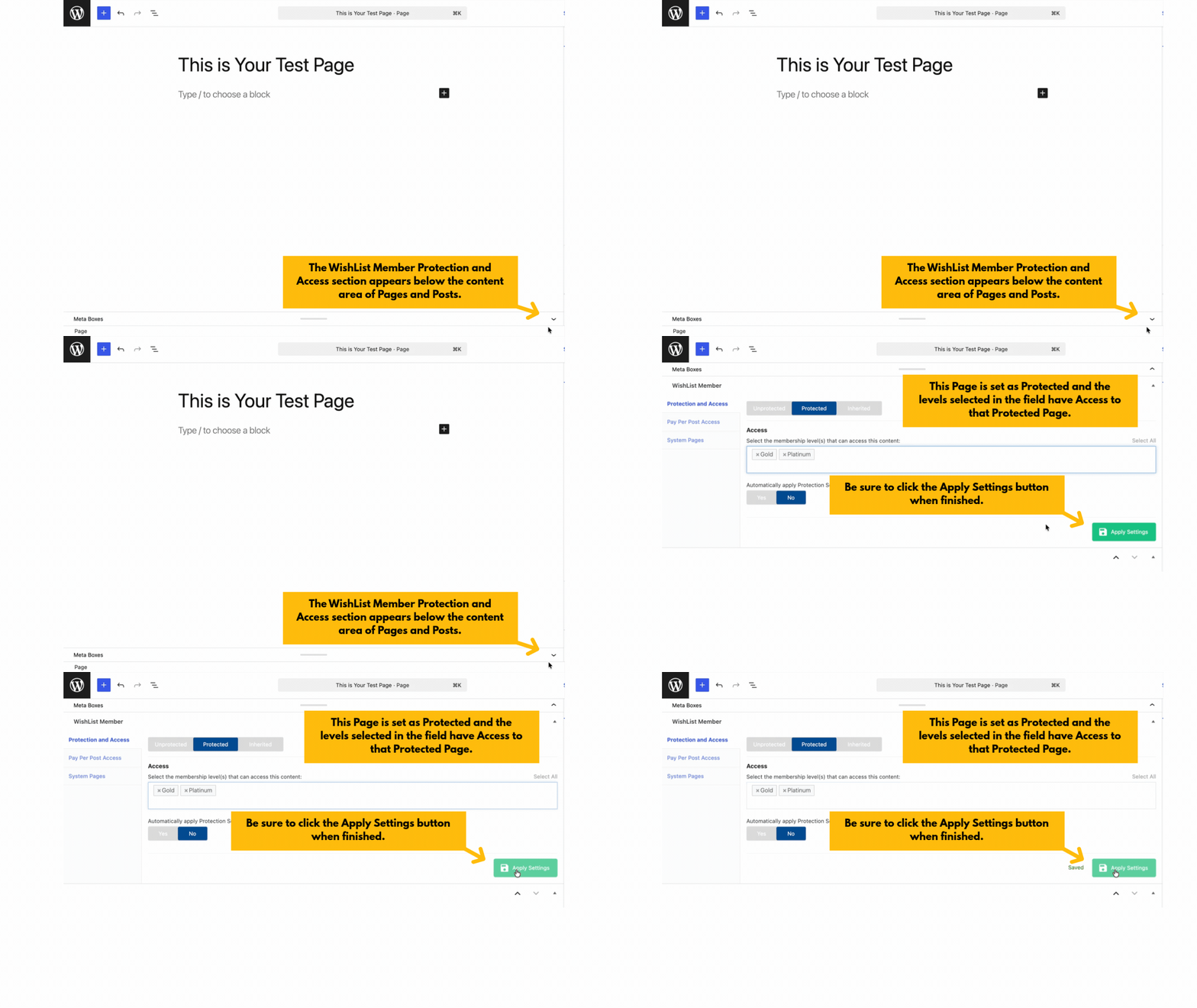
Set the protection toggle then choose which levels can access this specific page
If a lesson should reach both Silver and Gold members, select both. WishList Member only needs a member to hold one active assigned level to let them in. They don’t have to belong to every level attached to the content.
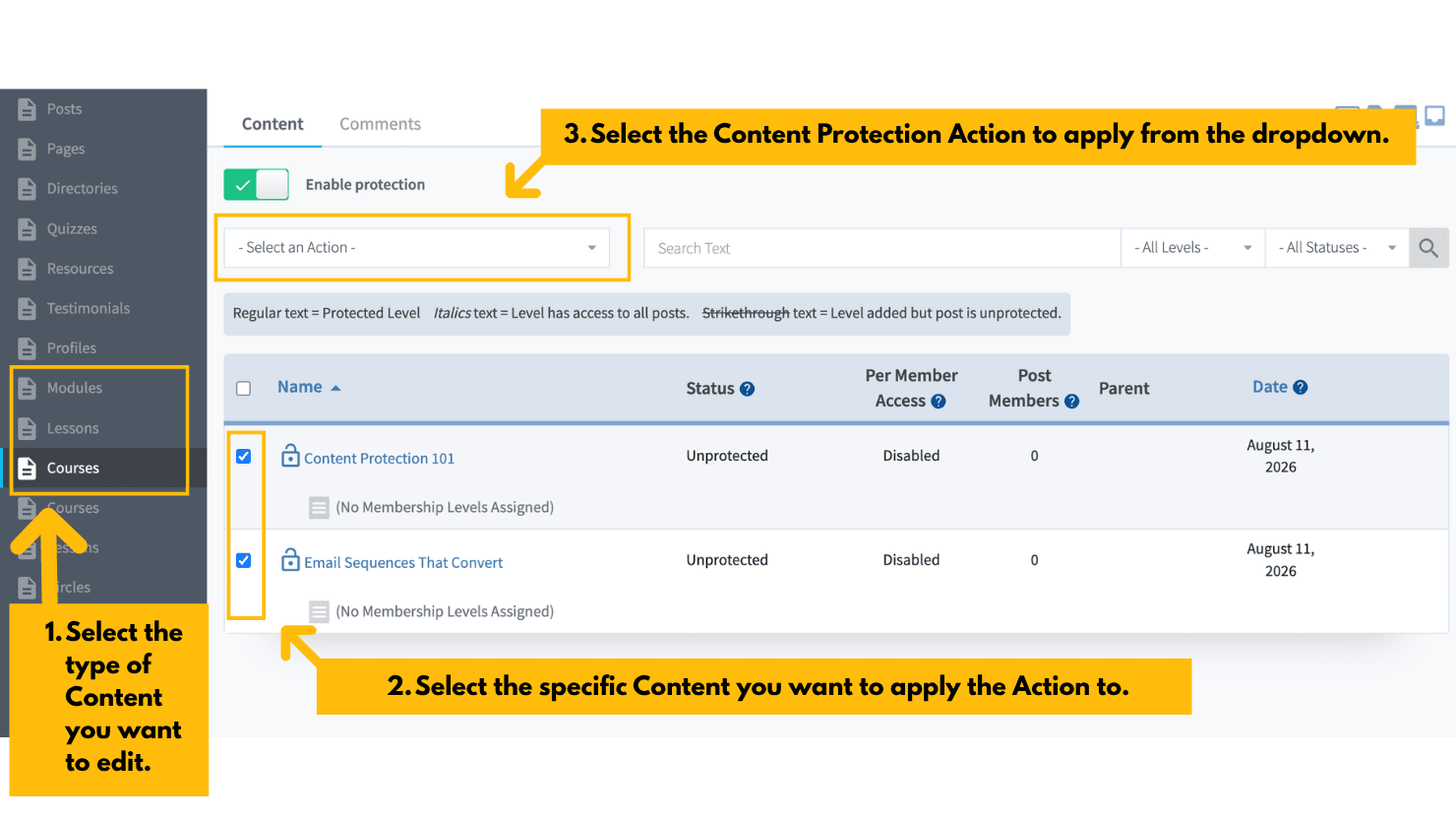
Prefer to work in bulk? You can manage access for lots of content at once from the Content Protection section in the WishList Member dashboard. That’s the faster route when you’re setting up a new site or cleaning up an existing one.
Use “Access To” for Broad Level-Wide Access
You can also open up access from the level settings themselves.
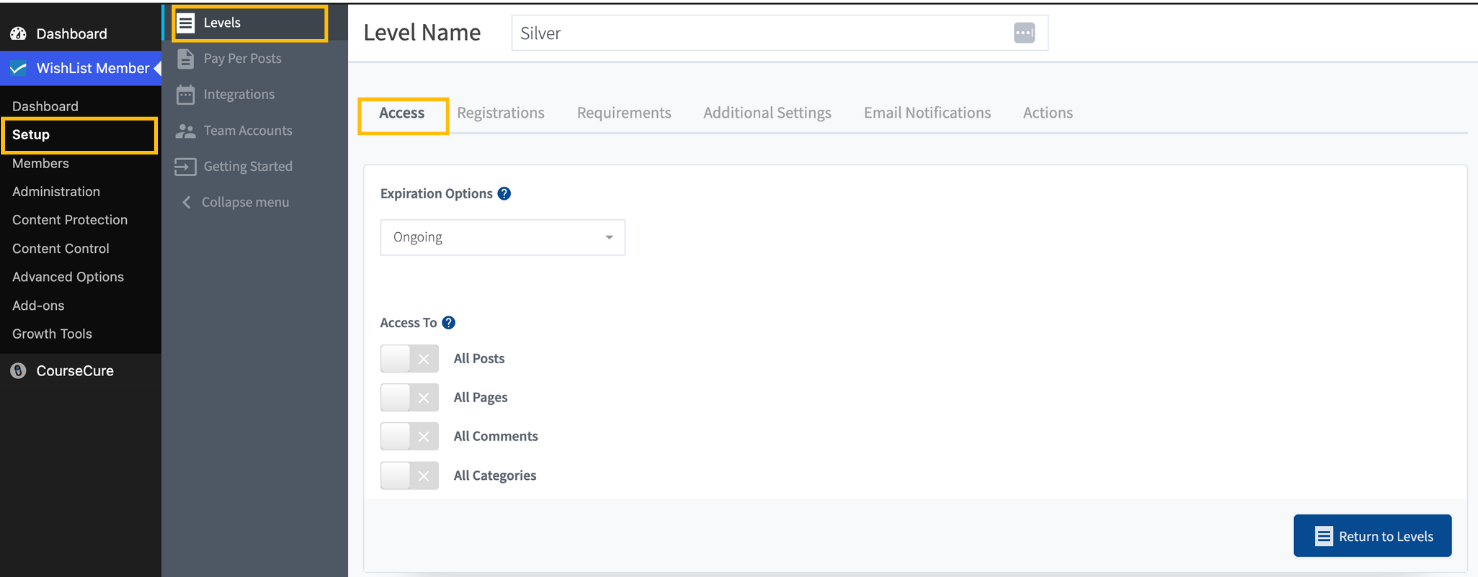
To do this, click on to Setup > Levels > select the level > Access tab, then find “Access To“. From there, you can give a membership level access to all posts or all pages on your site in one move.
It’s built for an all-access tier, like a Gold or VIP level that should see everything. Instead of adding that level to every single protected post or page by hand, you grant it in one setting.
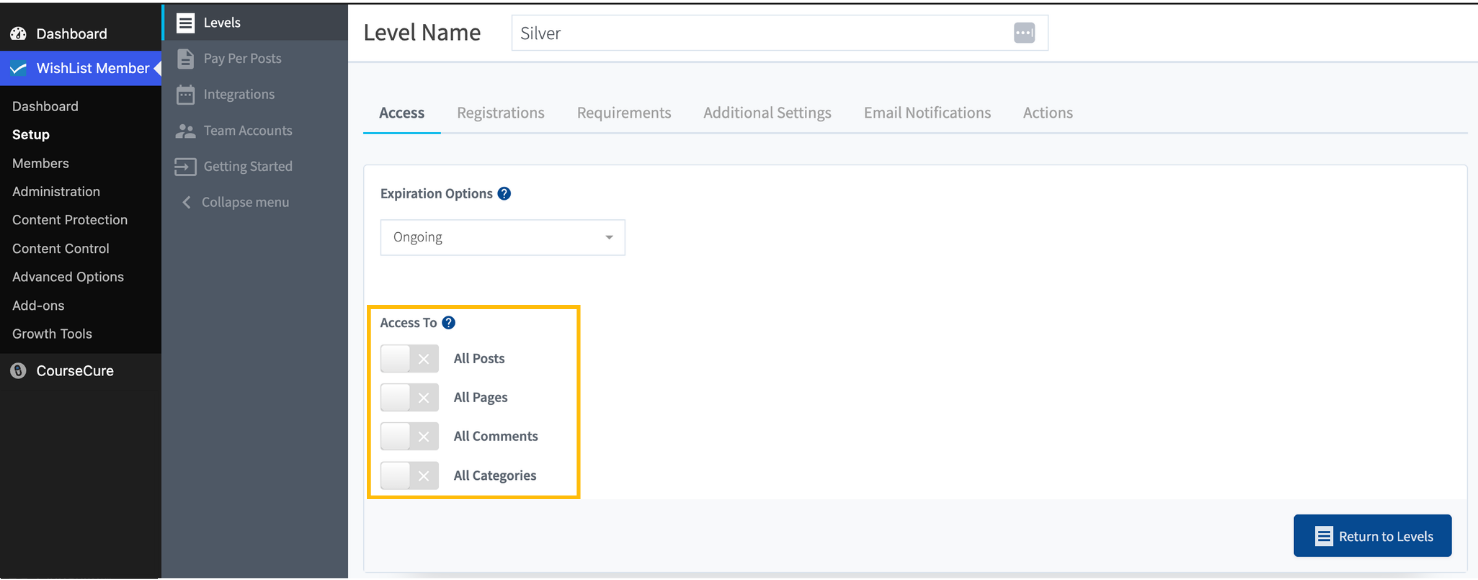
Just tread carefully here. Turn it on for all pages or posts and that level may suddenly reach more content than you meant to hand over. Save it for the levels you’re certain should have the full run of that content type.
Make Sure Members-Only Content is Actually Protected
WishList Member only controls access to content that’s been protected. If a page or post is unprotected, everyone can see it, logged-out visitors and non-members included. So anything meant for members only should be protected and assigned to the right membership level.
When you’re publishing often, it’s easy to spin up a new page, forget to protect it, and unknowingly push members-only content out into the open.
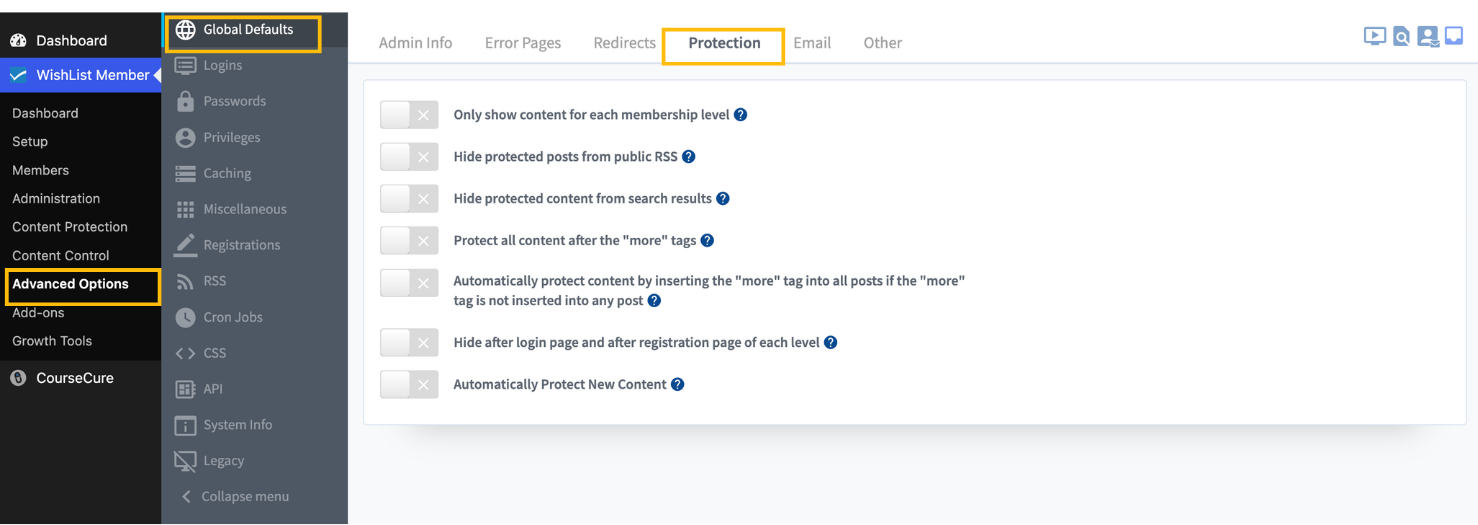
So, if most of what you publish is meant for members, flip the default under Advanced Options > Global Defaults > Protection to automatically protect new pages and posts. That one change makes it far harder to publish restricted content out in the open by accident.
Level Stacking: When Members Need More Than One Level
Level stacking is when one member holds more than one membership level at the same time. While it might sound weird having a single account with two membership levels, think of it this way:
WishList Member levels don’t work like a traditional tier ladder, where the top plan automatically includes everything beneath it. Each level is its own independent bucket of access. In other words, Gold doesn’t inherit Silver’s content unless you set it up that way.
Each level is a separate bucket rather than stacked rungs; combining access from more than one bucket at once.
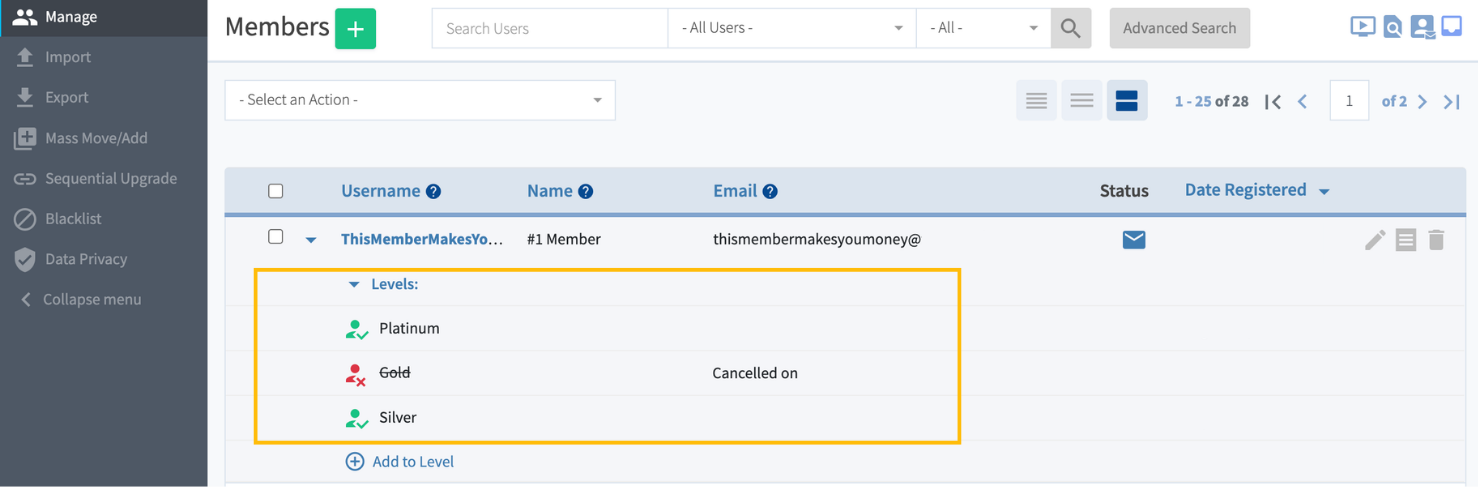
A single account can carry multiple levels, and each one keeps its own status. So if a member is active in both Silver and Gold, WishList Member checks both when it decides what they can see. Assign a page to Gold only, and that member still gets in, because their Gold level is active.
Why Stack Levels in WishList Member
You should consider stacking levels in your membership site when access needs to be combined, not swapped out. Here are a few examples:
- Add-ons or bonus levels: A member has a core membership, then buys an extra coaching add-on, resource library, or community access.
- Bundled access: A member buys a bundle that includes two different content tracks, like a business course and a personal development course.
- Manual access overrides: You want to give one member access to extra content without touching their paid plan or billing setup.
- Building an all-inclusive top tier: Since Gold doesn’t automatically include Silver, one clean way to give your highest tier everything is to also hand those members the Silver level, rather than copying every Silver access setting over to Gold.
In each of these, stacking works because every level brings something of its own to the table.
When Level Stacking Can Get Messy
Stacking turns messy when the overlap isn’t on purpose. If Silver and Gold unlock the same content, members won’t feel much difference between the two. That waters down the value of your higher tier and breeds confusion the moment someone upgrades.
Before you add another level to a member’s account, check what that level actually unlocks and confirm the extra access is something you meant to give.
WishList Member Tip: WordPress Roles and WishList Member levels are not the same thing. A member can hold multiple WishList Member levels, but only one WordPress Role at a time. WordPress Roles don’t control access to protected content. WishList Member handles that through membership levels and access rules.
How to Handle Upgrades and Downgrades Without Access Gaps
Upgrades and downgrades are where access issues love to surface.
A member jumps from Silver to Gold but still can’t see what they expected. Someone else cancels their Gold subscription yet somehow keeps reaching Gold-only material.
Nine times out of ten, the issue is how the old level, the new level, and the member’s status were handled during the switch, not the content.
What Happens When a Member Upgrades
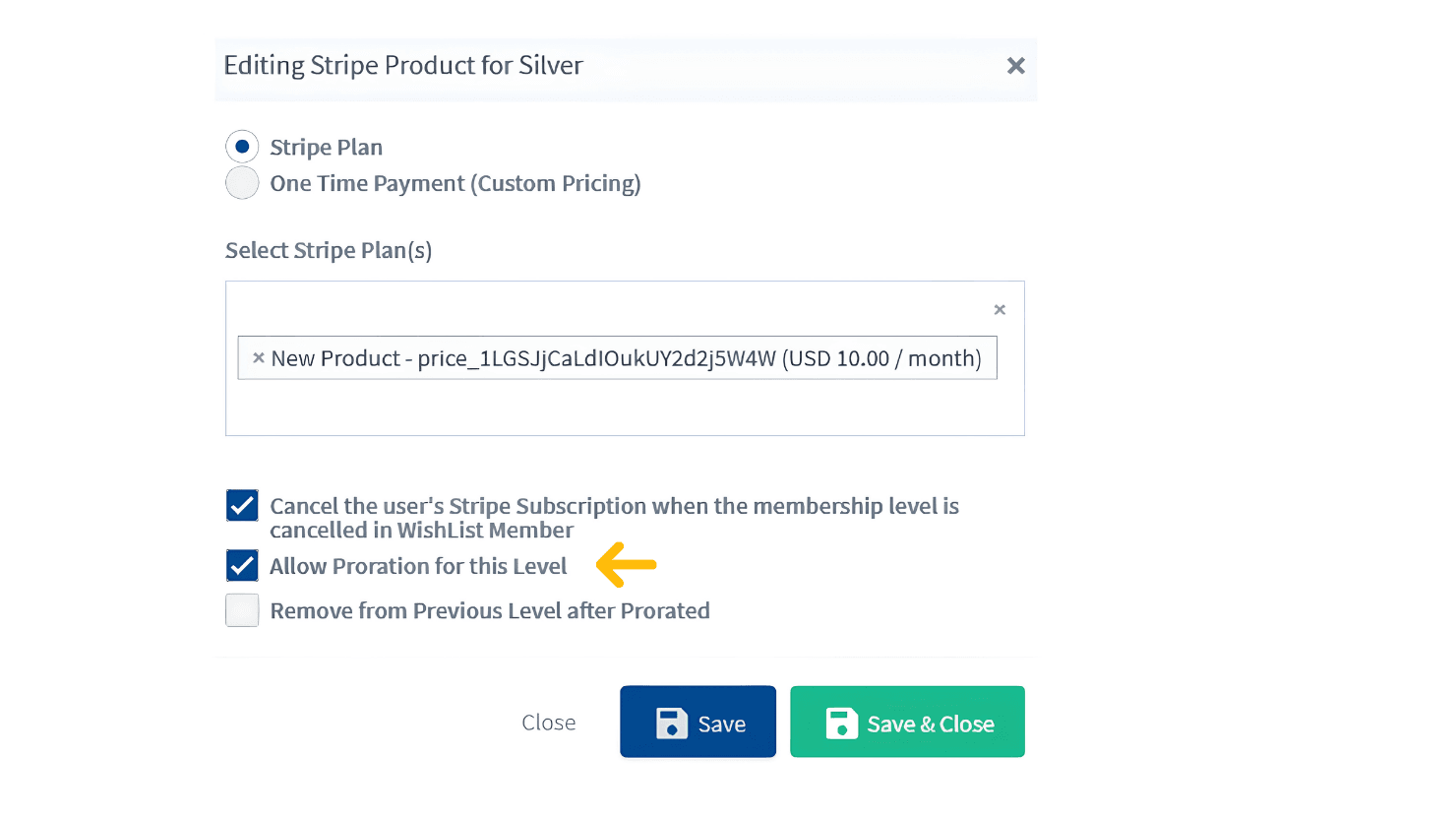
When a member upgrades through Stripe, you get to decide whether they’re removed from their previous level after the move. That call is based on the “Remove from Previous Level after Prorated” setting on the new level’s product.
Turn it on, and the member moves cleanly from one level to the next: they leave Silver, enter Gold, and hold a single active level. Leave it off, and they keep both, which means Active status in Silver and Gold at the same time.
Whether that’s a problem depends entirely on how you’ve built your membership.
If Gold includes everything Silver has plus more, keeping both levels active works nicely. You don’t have to duplicate Silver’s access settings for Gold members, because they still hold Silver too. But if Gold is a separate content track, hanging onto both levels can leave members with access they’re not supposed to have anymore. In that case, removing them from the previous level is the cleaner call.
What Happens When a Membership is Cancelled or Expires
When a membership is cancelled or expires, WishList Member flips that level’s status to Cancelled or Expired. From that point, access to any content tied to that level stops on its own. You don’t have to manually strip the level from the member’s account.
This is exactly why status is the first thing to check when you’re troubleshooting. A member might still show Gold in their account history, but if that Gold status reads Expired or Cancelled, Gold content stays locked.
Use Sequential Upgrades for Planned Access Changes
WishList Member’s Sequential Upgrade feature moves or adds members to different levels on a schedule you set. Most site owners reach for it to drip content, like releasing a fresh module every week. But it’s just as handy any time you want members to progress through planned access stages over time.
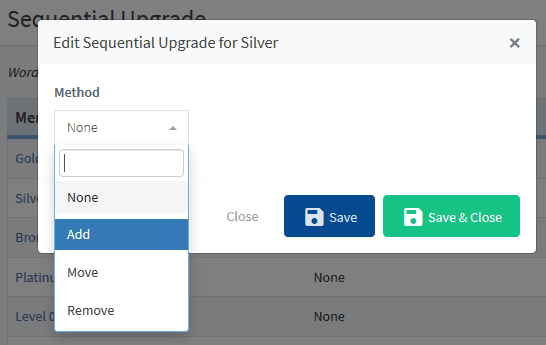
You’ll find that there’s three different methods for Sequential Upgrade:
- Add: The member joins the next level while keeping their current one, so their access builds over time. Great for training programs where members should still be able to revisit earlier material.
- Move: The member shifts into the next level and drops the current one, holding a single level at a time. Better when each level is its own separate stage and members don’t need to look back.
- Remove: The member is dropped from a level after a set period without being added to a new one. This is the one to use when a level should expire on its own, like a free-trial tier, a limited-run challenge, or a bonus level that’s only meant to last so long.
One thing to keep an eye on: if a member’s Sequential Upgrade status is set to Inactive, they won’t move through the schedule, even after the required time has passed. You can switch it on or off for individual members, or in bulk, from Members > Manage.
Common Access Gaps and How to Fix Them
When a member should be able to see content but can’t, the cause is usually one of a handful of setup gaps. Here’s where to look first:
1. The content is protected, but no level is assigned to it.
Protection is on, but the access field was left empty, so the content is locked with no membership level cleared to view it. To fix it, open the content’s WishList Member settings and add the correct levels to the access field.
2. The member’s level status isn’t Active.
A member can have a level on their account and still lose access if the status is Expired, Cancelled, or Needs Approval. Head to Members > Manage and review their level status. If it should be Active, update it manually or dig into why it changed.
3. New content was protected by default, but access was never assigned.
If you’ve enabled Automatically Protect New Content under Global Defaults, new posts and pages can be protected the moment they publish. Handy, but it also means you still have to assign the right membership levels afterward. Skip that, and the content is locked with no clear way in. The fix: open the new content and assign the levels.
4. The page is being used as an error page or a redirect page.
WishList Member keeps certain system pages unprotectable, because non-members need to be able to reach them. Use one of those pages for gated content by accident and your access rules won’t behave the way you’d expect. Build a separate page for the gated content instead.
5. You’re testing as an admin.
WordPress admins usually bypass content protection, so you might see everything even when regular members are locked out. Always test with a real member account. It gives you a far more honest picture of what members actually see.
Frequently Asked Questions
What is the difference between protection and access in WishList Member?
Protection marks content as members-only. Access decides which membership levels can view that protected content. You need both. If content is protected but no level is assigned to it, no one can reach it.
Can a member belong to more than one membership level at the same time?
Yes. One WishList Member account can hold multiple levels at once. As long as the member has an Active status in any level assigned to a piece of protected content, they can access it.
Does WishList Member update access automatically when a member upgrades?
It depends on how the upgrade is configured. With Stripe prorated upgrades, WishList Member can remove the member from the previous level if Remove from Previous Level after Prorated is enabled. If it isn’t, the member may keep both levels. Manual upgrades need to be adjusted under Members > Manage.
Why did a member’s status change from Active to Expired?
Check the level’s expiration settings under Setup > Levels > select level > Access tab. If the level has a fixed expiration period instead of ongoing access, members expire automatically once that time is up.
What happens if Sequential Upgrade is turned off for a member?
The member stops progressing through the upgrade schedule. They keep their current level access, but they won’t be added or moved to the next level until Sequential Upgrade is switched back on.
How does level stacking affect content access?
When a member holds multiple active levels, WishList Member checks all of them. If any active level is assigned to the protected content, access is granted. That’s exactly why your content assignments need to be intentional, especially when your higher tiers are meant to feel exclusive.
Keep Your Access Rules Easy to Trace
Getting multi-level access ultimately comes down to the simple logic WishList Member runs on:
Protection locks the content. Access decides who gets the key.
Once that’s clear, most access problems get easy to trace. You check whether the content is protected, which levels are assigned to it, and whether the member holds an Active status in one of them.
And if your site has grown past a few levels, make a habit of using the bulk editing options in the Content Protection section. A quick audit of which levels can reach which content heads off the bigger messes before they start.
Reviewing your access setup every few months takes far less time than untangling it for a frustrated member who paid for content they can’t reach.