
When it comes to displaying a date, WishList Member uses the Date Format set in WordPress.
You can view and edit the Date Format in the Settings > General section of WordPress.
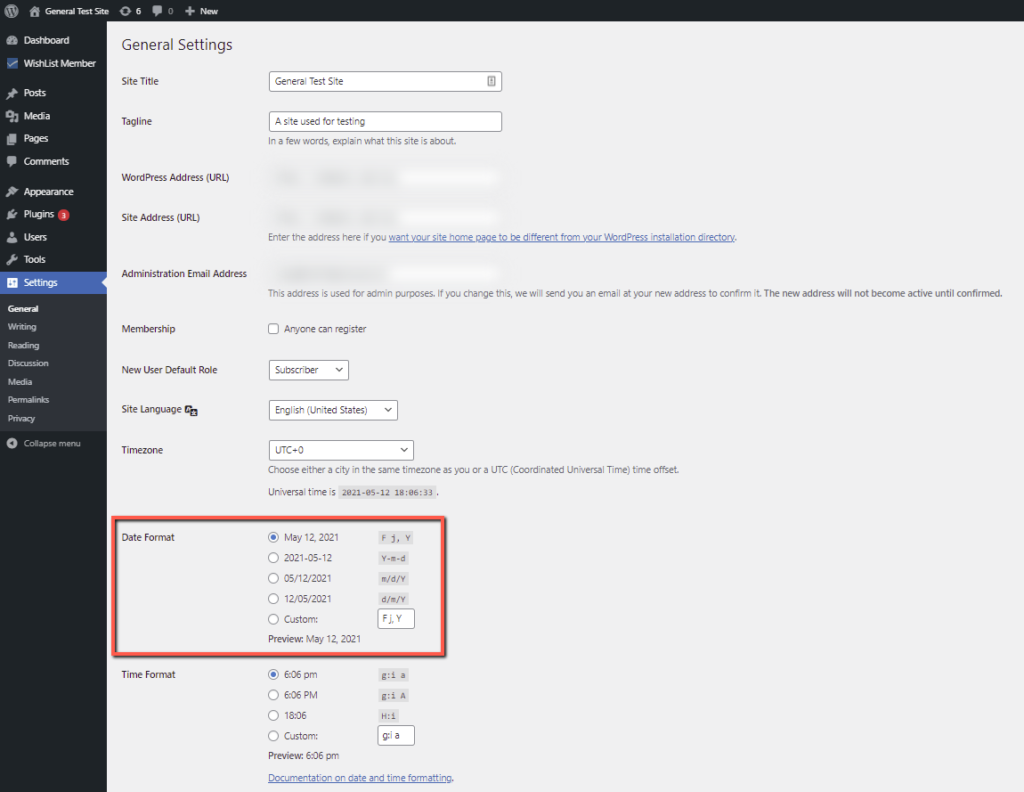
If you change the Date Format in WordPress, it will also change the Date Format to match for WishList Member Mergecodes and Shortcodes.
—
If you want to change the Date Format in a specific WishList Member Mergecode or Shortcode (and don’t want to change the WordPress Date Format), you can add a parameter.
In the case below, the Date Format is being changed to Day/Month/Year.
format=”d/m/Y”
As an example, the typical Expiration Date Mergecode for a Level named Bronze appears as the following:
[wlm_expiration Bronze]
If you wanted to change the Date Format, you can add format=”d/m/Y” to the Mergecode:
Example: [wlm_expiration Bronze format=”d/m/Y”]