Activating WishList Member with your unique license key can be done quickly on the WishList Member Dashboard. This ensures WishList Member is active on your desired site. You can also easily deactivate WishList Member from a site URL if you decide to use WishList Member on a different site and want to free up that license key.
Your active WishList Member plan allows you to login to the Customer Center and view your license key in the Downloads section. If you don’t have an active WishList Member plan or are unsure of your WishList Member plan status, please feel free to contact our support team.
Your Customer Center login is separate from the login for your WordPress site. The Customer Center login is the one you use at my.wishlistmember.com, where you find your license key and manage your activated sites. Your WordPress admin login is the one you use for your own website’s dashboard, where you activate your license key. They are separate accounts with separate passwords.
If you can’t log in to the Customer Center, see the WishList Member Customer Center – Login and Password Reset article.
—
Activate a License Key for WishList Member
The first step is locating your WishList Member license key. You were sent a welcome email when you purchased WishList Member and that email included information about your unique license key. That license key is all you need to activate WishList Member on your site.

—
You will then be shown your Downloads section where you will see your license key.

—
You can copy the license key and paste it into the corresponding License Key field on the WishList Member Dashboard in your WordPress site. The final step is clicking the Activate License button.

—
The WishList Member Dashboard will appear/refresh and the site is now activated with your license key. You will see the last four characters of your license key in the License Information section.

If activation fails or your site can’t reach the licensing server, see the Activation and Updates Connectivity article.
—
Deactivate a License Key for WishList Member
A WishList Member license key can be deactivated by using one of the two available methods. This can be done on the WishList Member Dashboard or in the Downloads section of the Customer Center.
Deactivate License Key on the WishList Member Dashboard
You can use the Deactivate License button located in the License Information section of the WishList Member Dashboard on your WordPress site.

—
After you click the Deactivate License button, a popup will appear asking you to confirm the deactivation. Once you click the OK button, the license key will be deactivated.

—
The license key is now deactivated and you can use that license key to activate WishList Member on another site URL.
Deactivate License Key in the Customer Center
Customers with an active plan can login to the WishList Member Customer Center and access their account information. This allows you to access your license key, view activated sites, deactivate your license key from a site, etc. This can all be done in the Downloads section.
Once you login, you can click either of the Downloads links as they will take you to the same section.
—
Below is a screenshot example of the Downloads section. You can click the Manage link to view your activated site(s).

—
The Site Activations popup will appear and you can view your activated site URL(s). The Deactivate button can be used to deactivate the WishList Member license key from the site URL. You can then click to deactivate the license from the selected site(s).

—
The license key is now deactivated and you can use that license key to activate WishList Member on another site URL.
—
“You do not have any licenses” Error
If you see the “Error: You do not have any licenses” message in the Downloads section of the Customer Center, this usually means your account doesn’t have an active WishList Member plan.
It can also mean your plan was purchased with a different email address than the one you’re logged in with. Make sure you’re logged in to the Customer Center with the email you used at checkout. If you’re still seeing the error, contact our support team and we can verify your account for you.
—
License Key Does Not Contain Data
All WishList Member data, member info, etc. is stored in the WordPress database so deactivating or reactivating the license key does not remove that data. The WishList Member license key allows you to activate WishList Member on a WordPress site, but it does not contain any site data.
—
What Happens When the License Is Not Active
Deactivating the license key does not remove content protection from the site. WishList Member continues to protect content, and members keep access based on their membership levels.
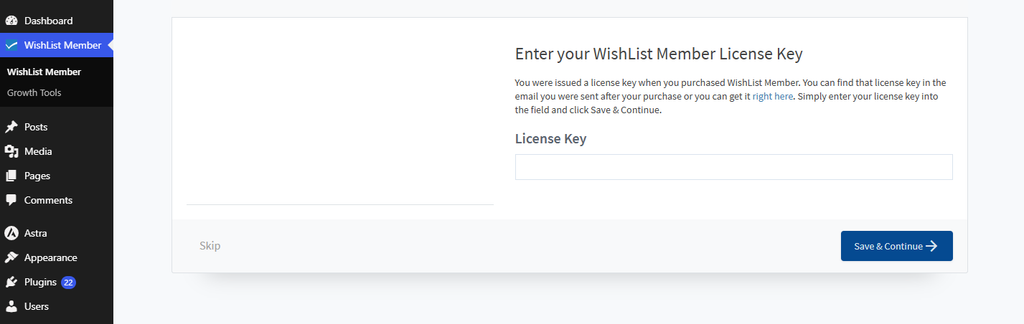
Without an active license, the WishList Member menu opens the Enter your WishList Member License Key screen. To activate the site, enter the license key and click Save & Continue. To reach the WishList Member settings without activating, click Skip.
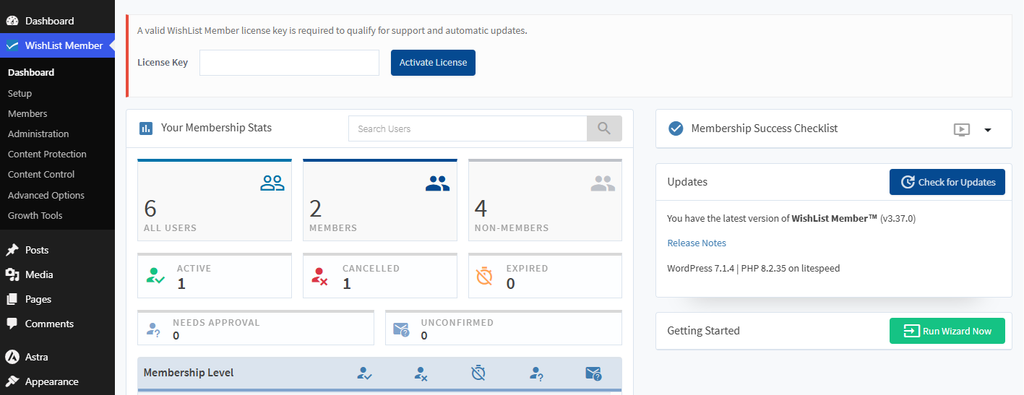
After clicking Skip, the WishList Member settings open as usual. A banner at the top of the WishList Member Dashboard says support and automatic updates need a valid license key. The banner includes a License Key field and an Activate License button.
Without an active license, the site does not receive WishList Member updates. When WishList Member releases a new version, the site stays on its current version. Updates resume once a license key with an active plan is activated. Support also requires an active license.
—
Running Two Sites During a Migration
Each site with an activated license key uses one site activation. The number of activations depends on the plan:
| Plan | Sites |
|---|---|
| Basic | 1 |
| Plus | 2 |
| Pro | 5 |
On a Plus or Pro plan, activate the license key on the new site while the old site stays active. This works as long as the plan has a free activation. After the migration, deactivate the license key on the old site.
On a Basic plan, only one site can be active. Deactivate the license key on the old site first, then activate it on the new site. The old site keeps protecting content while it is deactivated.
If the old site is already offline, deactivate it from the Customer Center instead. See Deactivate License Key in the Customer Center.
—
You can activate WishList Member on your site URL using your unique license key on the WishList Member Dashboard and can easily deactivate your license if you decide you no longer want to activate the selected site(s).