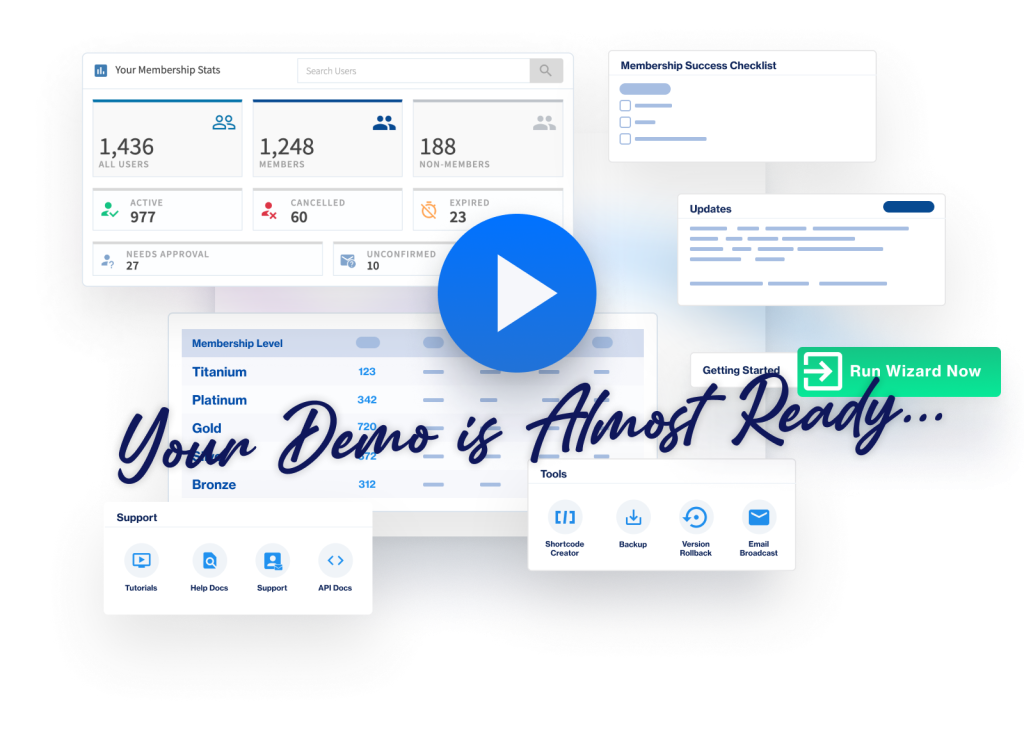
The Customer Center is where you download WishList Member, find your license key, and manage your plan and activated sites. You’ll find it at my.wishlistmember.com.
Your Customer Center login is separate from the login for your WordPress site. The Customer Center login is the one you use at my.wishlistmember.com. Your WordPress admin login is the one you use for your own website’s dashboard, where you activate your license key. They are separate accounts with separate passwords, so if you’re ever unsure which one you’re locked out of, this article will help you with the Customer Center side.
There are two ways to log in, and two ways to reset your password. Pick the one that fits your situation. Let’s go through each option.
—
Log In with Your Google Account
Use this option if you used a Google account when you created your account on our site.
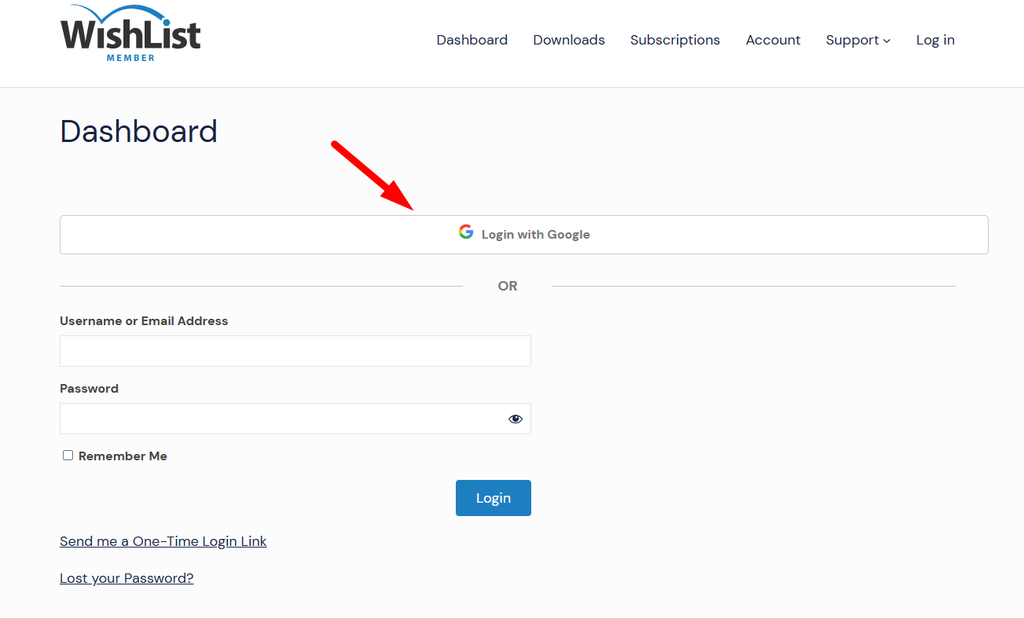
Go to my.wishlistmember.com and click the “Login with Google” button.
—
You’ll be redirected to the Sign in with Google page to use your email address. Choose or enter the same Google account you used when you created your WishList Member account and click the “Next” button.
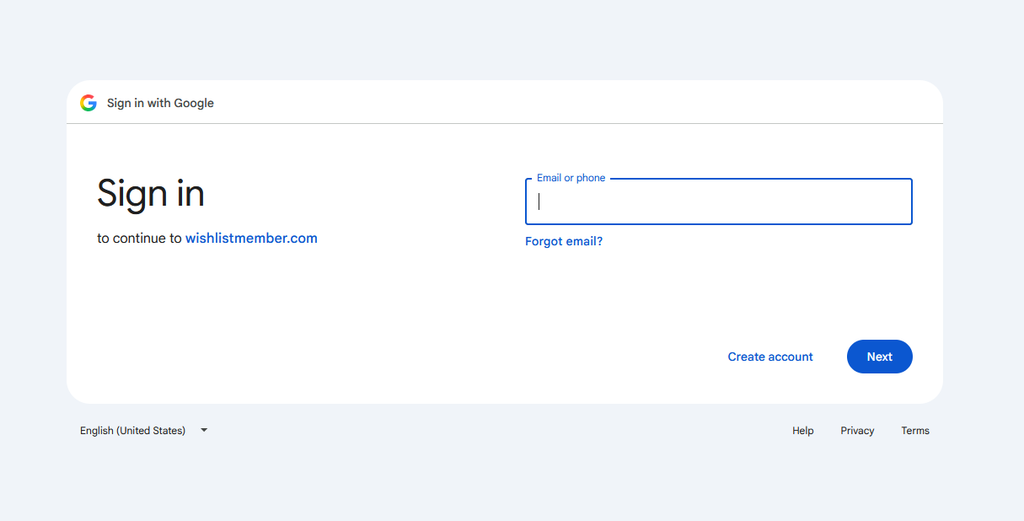
Once you’ve confirmed, you’ll be logged in to the Customer Center.
—
Log In with Your Username or Email Address and Password
Use this option if you registered on our site with a username or email address and a password.
Go to my.wishlistmember.com and enter your Username or Email Address and your Password in the login fields. Then click the “Login” button.
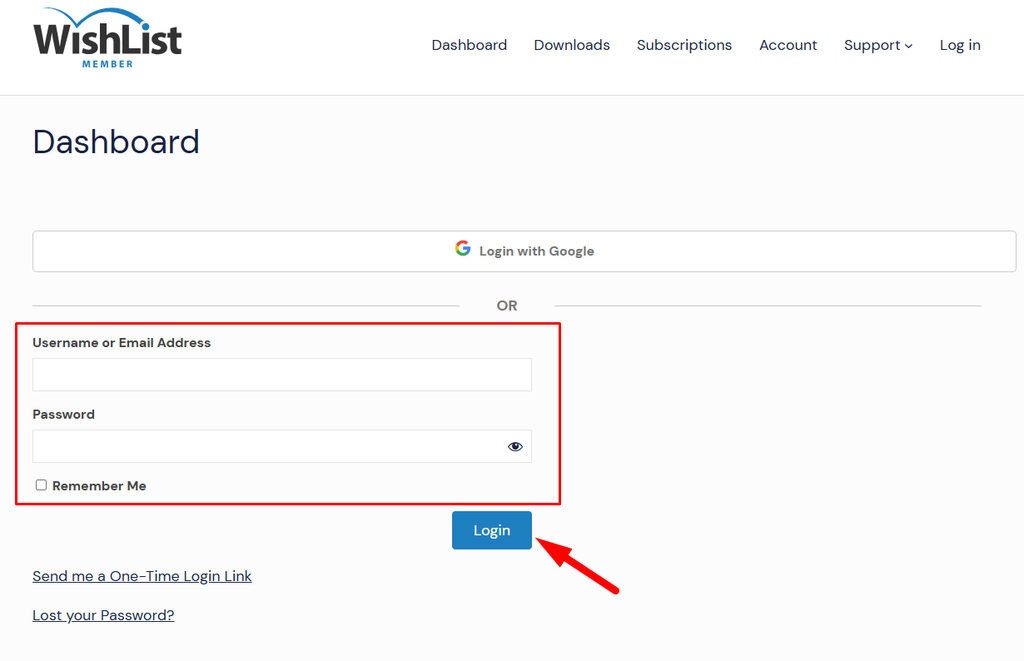
Use the same details you entered when you registered.
—
Reset Your Customer Center Password
If you can’t remember your password, there are two ways to get back in. You can use the “Lost your Password?” link to set a new password, or you can ask for a one-time login link.
Go to my.wishlistmember.com and click the “Lost your Password?” link on the login page.
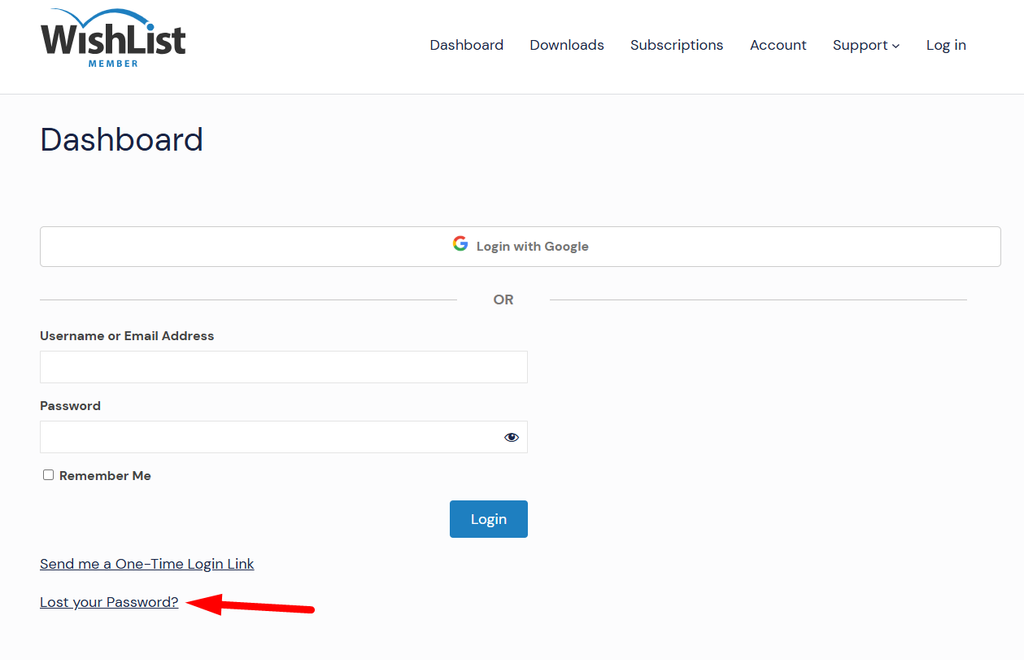
You’ll be taken to the Lost Password page. Enter your Username or Email Address and click the “Get New Password” button to continue.
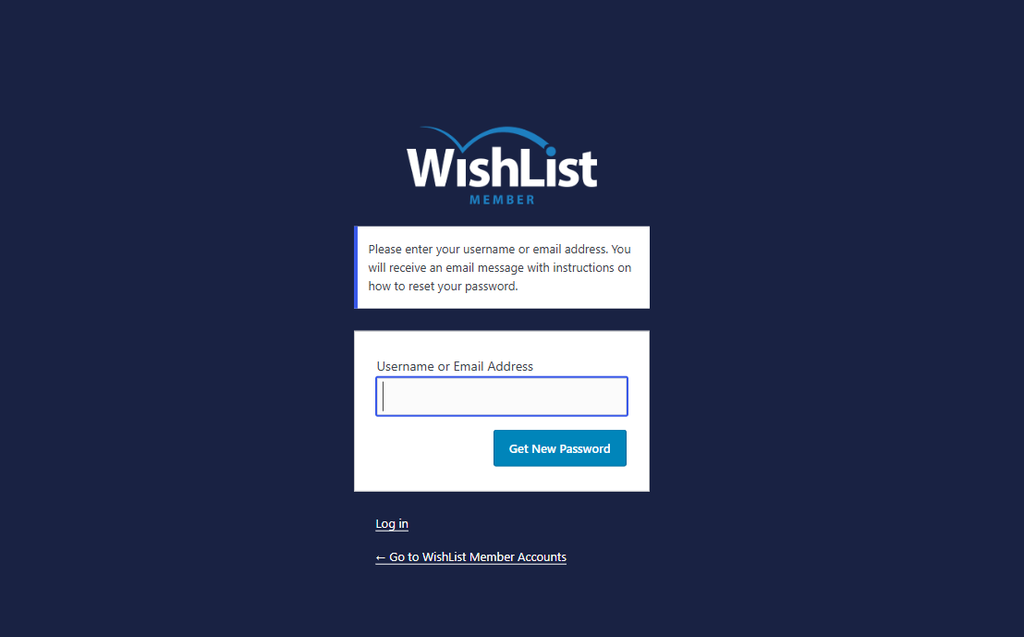
An email will be sent to you with a link to create a new password. Click the link in the email and enter the new password you prefer.
—
Log In with a One-Time Login Link
If you’d rather get in first and change your password afterward, you can use a one-time login link.
Go to my.wishlistmember.com and click the “Send me a One-Time Login Link” link on the login page.
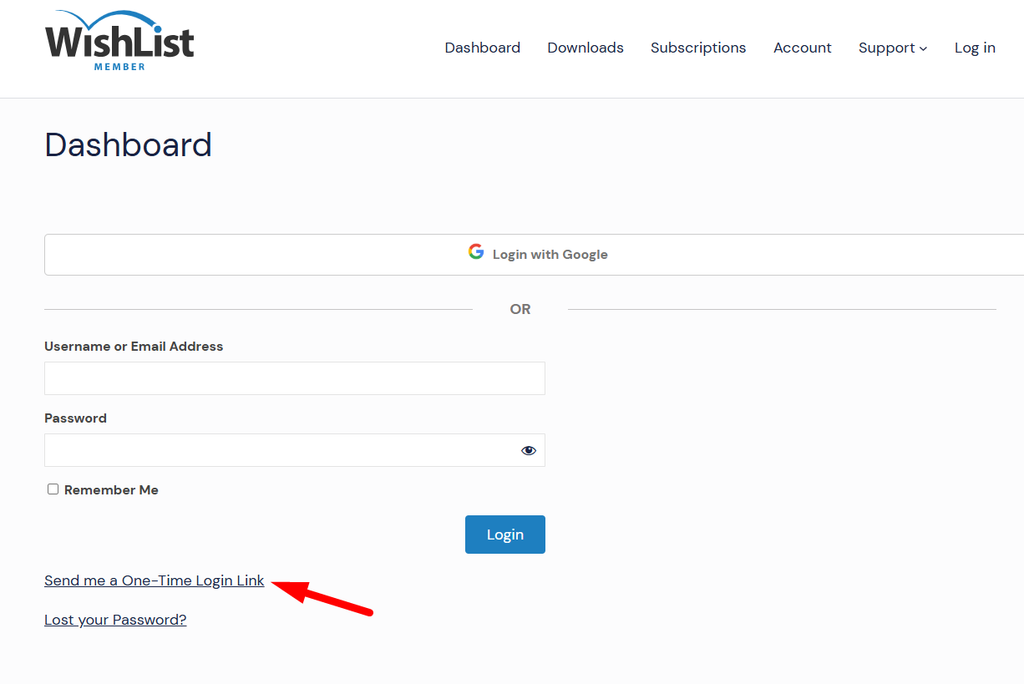
You’ll be taken to the One-Time Login Link page. Enter your Username or Email Address and click the “Get One-Time Login Link” button to continue.
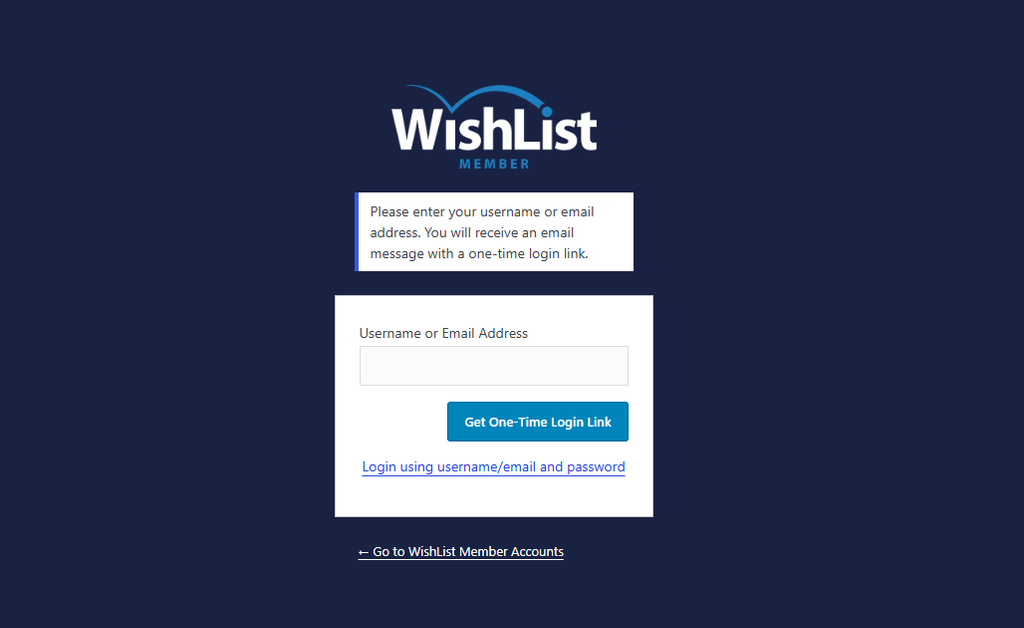
An email will be sent to you with a login link. The link works once and expires after 48 hours. Click it to log in to the Customer Center automatically.
Once you’re logged in, you can reset your password to the one you prefer.
—