WishList Member includes an integration with Divi 5. It controls which Sections, Rows and Modules a visitor sees, based on membership status. Different members can see different content on the same page.
This document explains how to add a WishList Member condition to a Divi element. For the Divi 4 version, see the WishList Member Divi integration document.
Prerequisites
Install and activate WishList Member and Divi, and create at least one membership level in WishList Member.
Enabling the Integration
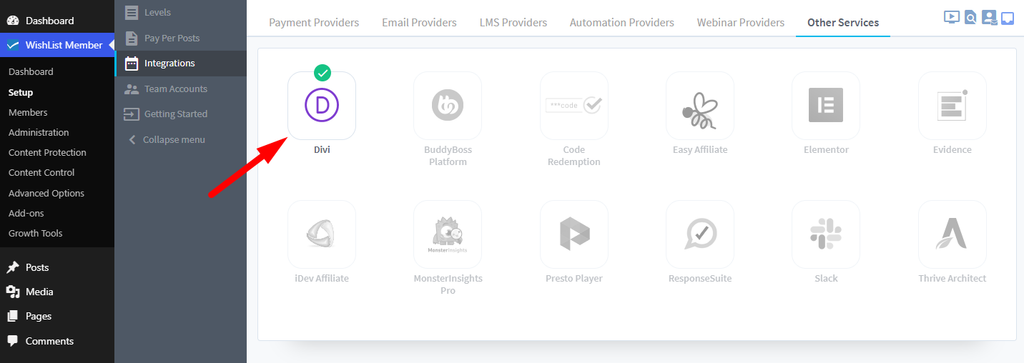
Navigate to Dashboard > WishList Member > Setup > Integrations > Other Services. Confirm that Divi is enabled.
Adding a WishList Member Condition
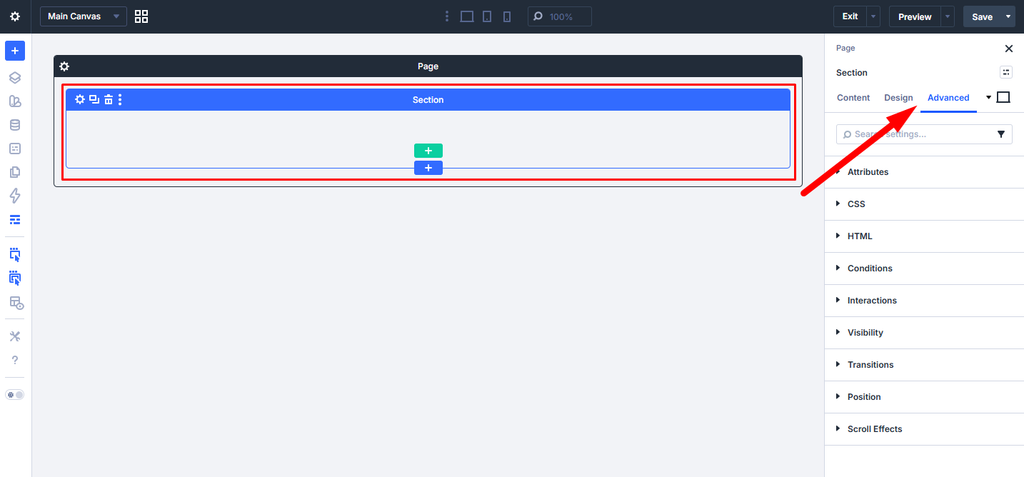
Open the page in the Divi builder, then open the settings of the Section, Row or Module to restrict. Select the Advanced tab.
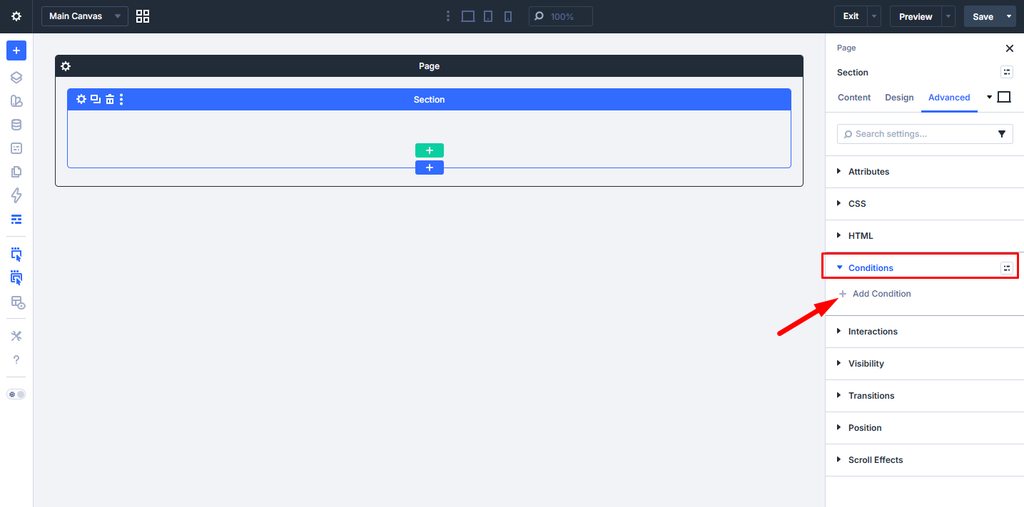
Expand Conditions and click Add Condition.
Under User, select WishList Member Level.
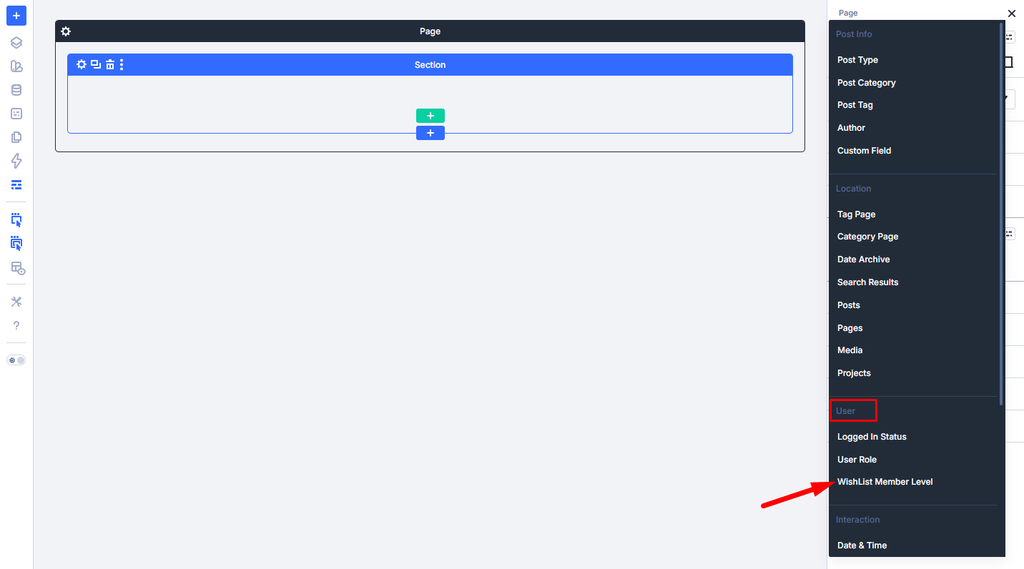
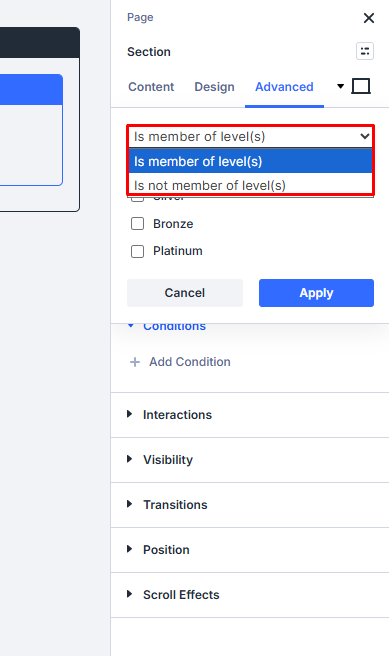
Select Is member of level(s) or Is not member of level(s).
Is member of level(s). The content is only viewable to users who are logged in and have the selected membership level(s) assigned to their account.
Is not member of level(s). The content is only viewable to users who are logged in and do not have the selected membership level(s) assigned to their account.
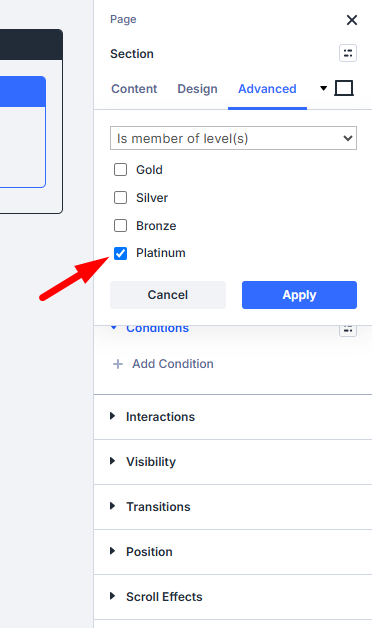
Select the membership level(s) that can see the element, then click Apply. In this example, the Platinum level is shown as selected.
Save the page.
Everybody, Not Logged-In and Logged-In Options
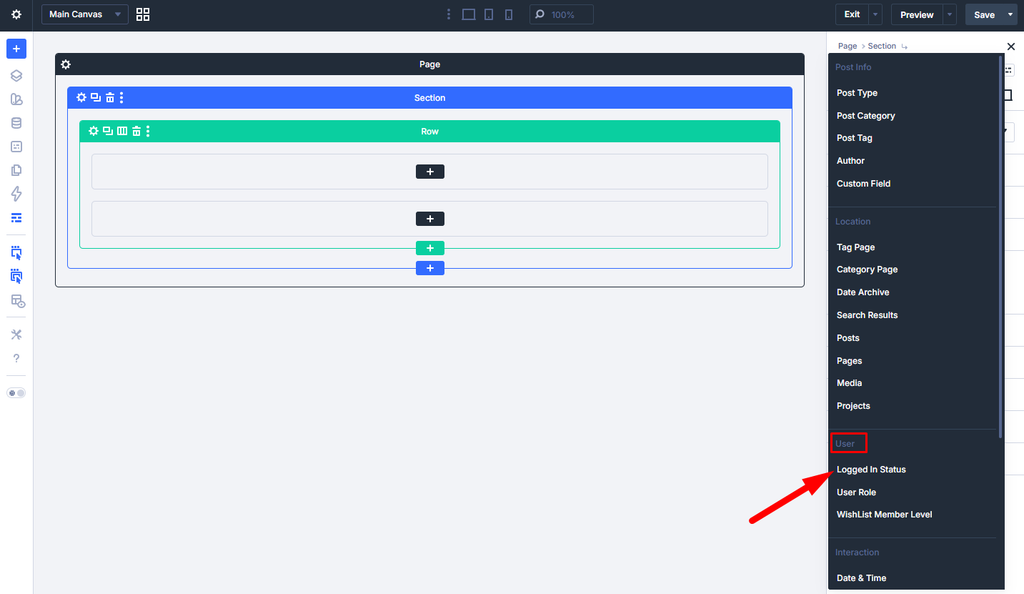
The Everybody, Not Logged-in and Logged-in options are now part of Divi’s own conditions. To use them, navigate to Advanced > Conditions > Add Condition > User > Logged In Status.
The page now shows the element only to the visitors that the condition allows. Add the same condition to other Sections, Rows or Modules to show different content to logged-out visitors and to members of each level.